
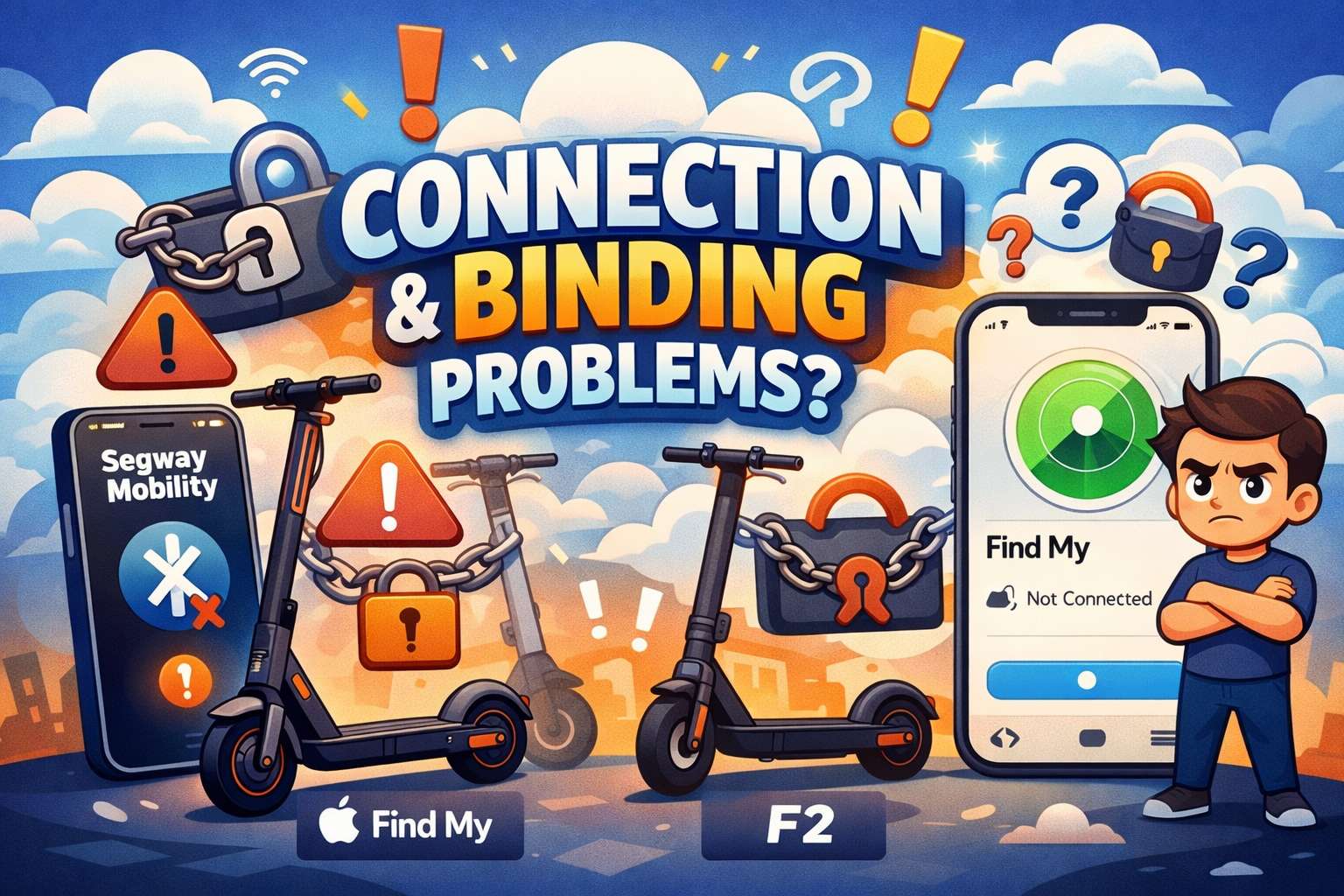
If your Segway scooter will not pair, you are not alone. First-time setup can feel messy, and the app language does not always help. Still, the fix is usually simple once you split the problem into small steps.
In this guide, you will learn how to fix:
- Segway app not connecting
- Ninebot scooter “bound” to another account
- Ninebot E2 Pro Find My setup
- Segway F2 Find My pairing
- How to find your Segway scooter in Apple Find My
You will get a practical flow you can follow in a few minutes, then repeat any time the connection breaks.
Why this happens so often
First, there are two different links during setup:
- Bluetooth pairing between phone and scooter
- Ownership binding in account systems, mostly Apple Find My for supported models
Next, many riders complete Bluetooth pairing, then assume everything is done. Then the scooter shows a binding message, and setup stops. At that point, it looks broken, but it is usually just incomplete.
Then there is app naming confusion. A lot of people still search “Segway-Ninebot app,” yet the app now appears as Segway Mobility in stores. So users think they installed the wrong app, even when they did not.
After that, firmware causes another block. Old firmware can pair, yet fail account-level steps. So firmware check is not optional, it is part of the fix.
Fast pre-check before troubleshooting
First, charge the scooter enough for setup.
Next, turn Bluetooth on and off once on your phone.
Then, reboot the scooter and reopen the app.
After that, sign in to your Segway account in the app.
Now, pair the scooter in app and run firmware updates right away.
Finally, keep the scooter unlocked during Find My registration.
This pre-check solves a lot of failed setups before deeper troubleshooting starts.
Segway app not connecting. Clean fix path
Use this order exactly. Do not skip around.
1) Restart both sides
First, close the app fully.
Next, power off the scooter for a few seconds.
Then, power it on and reopen the app.
2) Reconnect Bluetooth from inside app
First, tap Add Device or My Vehicles.
Next, select your scooter model when it appears.
Then, wait for the Bluetooth icon to confirm connection on the dashboard.
3) Complete activation
First, accept prompts in the activation flow.
Next, confirm any safety screens.
Then, finish account/device link prompts.
4) Update firmware
First, go to device settings in app.
Next, install all available firmware packages.
Then, reconnect once after update completes.
5) Retry from fresh state
If it still fails, remove the scooter from app device list, then add it again.
If it still fails after that, reinstall the app, sign in again, and pair one more time.
At this point, Bluetooth pairing issues are usually fixed.
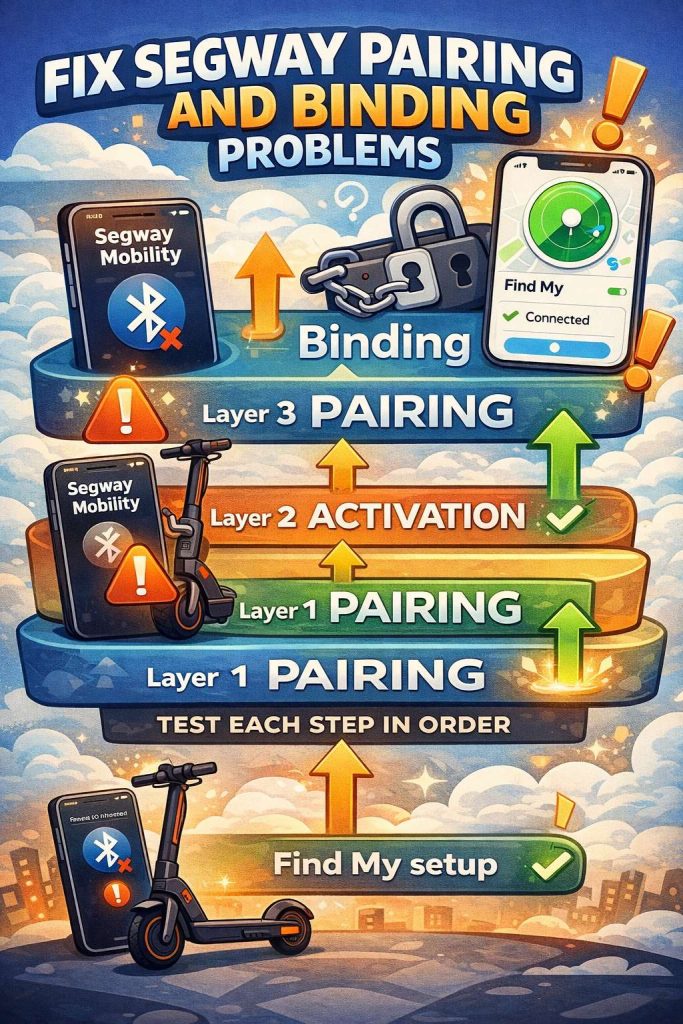
What “bound to another account” really means
This is the message that frustrates most riders. In plain language, the scooter still has ownership data linked to a different account path.
First, this can happen with second-hand scooters.
Next, it can happen on your own scooter if setup failed halfway.
Then, it can happen after account changes, phone migration, or an interrupted reset.
So the fix is to clear old ownership state, then bind again from scratch.
Ninebot E2 Pro Find My setup that actually works
Use one complete method at a time.
Method A. Start from Segway app
First, connect scooter in Segway app.
Next, open the Find My or locating feature area in scooter settings.
Then, enable the feature and continue to Apple Find My prompts.
Method B. Start from Apple Find My
First, open Find My on iPhone.
Next, tap +.
Then, tap Add Other Item.
After that, put scooter in pairing mode using the E2 Pro pairing gesture shown in model instructions.
Now, select your scooter in Find My and finish registration.
If method A fails, use method B right away. If method B fails, reset ownership state first, then retry.
Segway F2 Find My setup
The flow is very close to E2 Pro, so troubleshooting feels familiar.
First, open Find My on iPhone.
Next, tap + and choose Add Other Item.
Then, place the F2 in Find My pairing mode using the model gesture.
After that, select the scooter and complete pairing.
Finally, verify the scooter appears in Find My Items list.
If your F2 supports a Find My toggle via control gesture, confirm it is enabled before pairing attempts.
“Unable to bind with Apple Find My.” Reliable recovery flow
Use this exact sequence.
Step 1. Remove stale Find My entry
First, open Find My Items list.
Next, remove any old entry for this scooter.
Step 2. Reset scooter binding state
Then, run the model reset gesture for ownership/binding reset.
After that, reboot the scooter once.
Step 3. Re-add as a new item
Now, open Find My.
Next, tap + then Add Other Item.
Then, run pairing gesture and complete setup.
Step 4. Confirm item is active
Finally, check item appears in Find My with a valid last-seen state.
This is the cleanest fix for “bound” loop errors.
Selling or buying a used Segway. Do this before handover
If this step is skipped, the next owner gets blocked. So do it every time.
Seller checklist
First, disable Find My on scooter if the model has that toggle.
Next, remove scooter from Apple Find My Items.
Then, remove scooter from Segway app account.
After that, reset ownership/binding state on scooter.
Buyer checklist
First, verify scooter is not in seller’s Find My list anymore.
Next, pair in Segway app.
Then, update firmware.
After that, add to your own Find My account.
If either side skips one step, pairing often fails later.
How to find your Segway scooter in Find My after setup
Once binding is complete, finding the scooter is easy.
First, open Find My.
Next, tap Items.
Then, select your scooter name.
After that, check current or last known location.
Now, use available options like sound, directions, or lost mode tools if supported for that item state.
So yes, setup feels annoying once. Yet after clean binding, tracking becomes simple.
Common mistakes that waste time
First, pairing Bluetooth in phone settings only, then skipping in-app activation.
Next, trying Find My before firmware updates.
Then, attempting pairing with scooter locked.
After that, mixing steps from different models in one attempt.
Finally, skipping unbind steps on used scooters.
Avoid these, and setup success rate goes way up.
Quick troubleshooting map by symptom
Symptom: Segway app cannot find scooter
First, restart phone Bluetooth.
Next, reopen app.
Then, reconnect from app device screen.
After that, update firmware.
Symptom: “Bound to another account”
First, remove old Find My item.
Next, reset ownership state.
Then, bind again from scratch.
Symptom: Find My does not discover scooter
First, verify model support for Find My.
Next, confirm iPhone software is current.
Then, run pairing gesture again in a quiet Bluetooth environment.
Symptom: Pairing works, then drops later
First, complete all firmware updates.
Next, remove and re-add scooter in app once.
Then, confirm account session is active and not expired.
Extra help that saves support tickets
If your scooter throws a numeric error during setup, check this troubleshooting hub:
Segway Ninebot Error Codes Hub
If you are comparing platforms and want fresh launch context, this update is worth a read:
Xiaomi Electric Scooter 6 leak just dropped
Both pages help users decide if the issue is setup-related, firmware-related, or hardware-related.
Friendly final checklist before your first ride
First, app pairing is complete.
Next, firmware is fully updated.
Then, Find My item appears in your account.
After that, old owner links are removed if it is a used scooter.
Finally, you tested reconnection once after reboot.
If all five checks pass, you are good to ride.
FAQ people search right now
Why does my Ninebot say it is already bound?
Most times, old ownership data is still active. Remove old Find My entry, reset scooter binding state, then rebind.
Can I use Segway app and Apple Find My together?
Yes. App pairing controls settings and firmware. Find My handles location item tracking for supported models.
Why does pairing fail after phone change?
Old app session or stale Find My binding usually remains. Re-login, remove stale item, then pair again as new.
Is E2 Pro setup different from F2 setup?
Core logic is the same. Gestures and menu names can differ by model and firmware version, so use the right model instructions.